
👥 Staff & Scheduling
The Staff section is the command center for your team in Woofix. This is where you manage employee profiles, assign their services, and add their availability for the calendar and online booking.
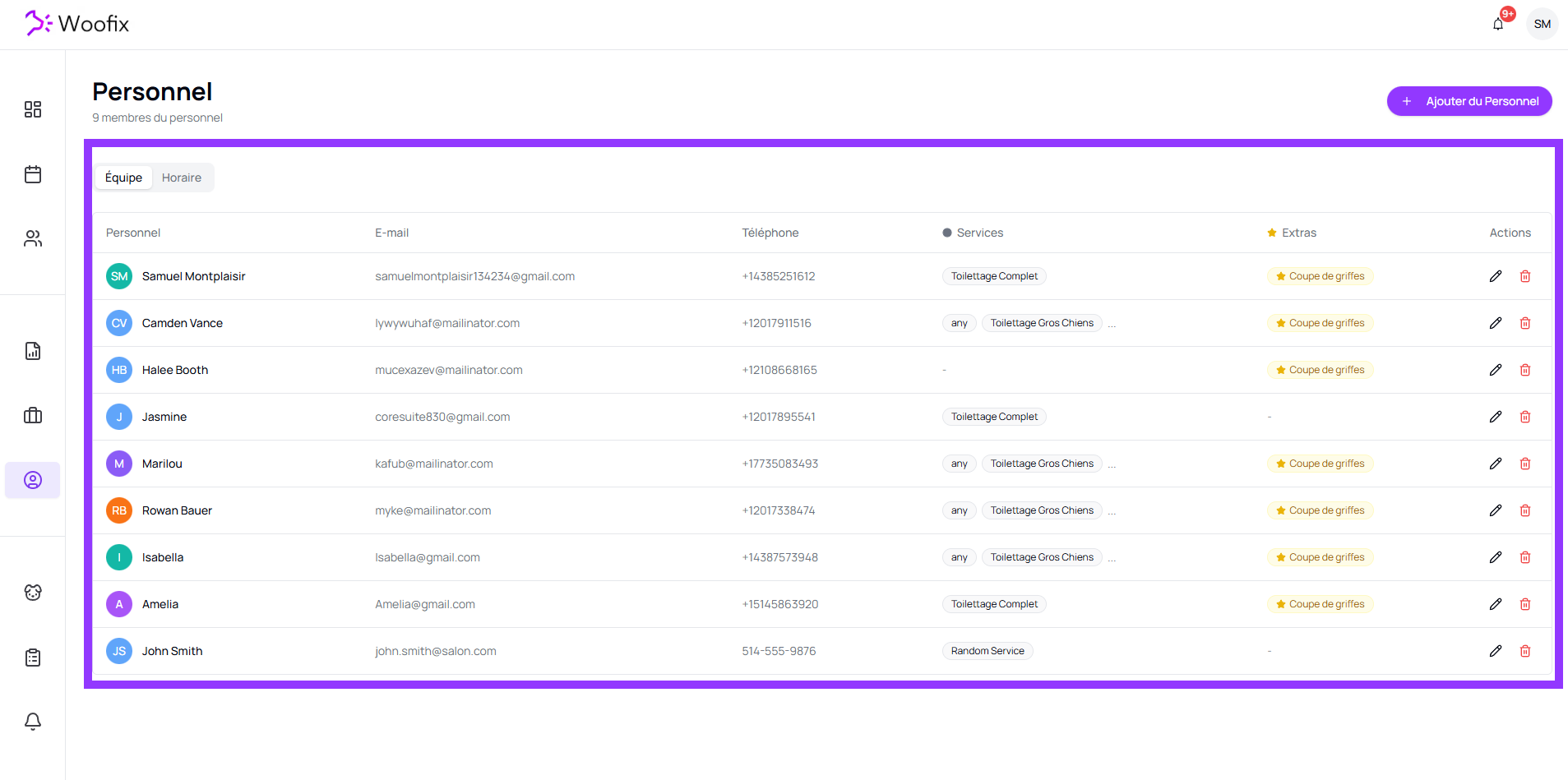
1. 📋 Employee List
When you open the Staff tab, you land on the overview of your team. From this page, you can:
- Add a new employee (Add button).
- Edit an existing employee (by clicking their name).
- Delete a profile that is no longer active.
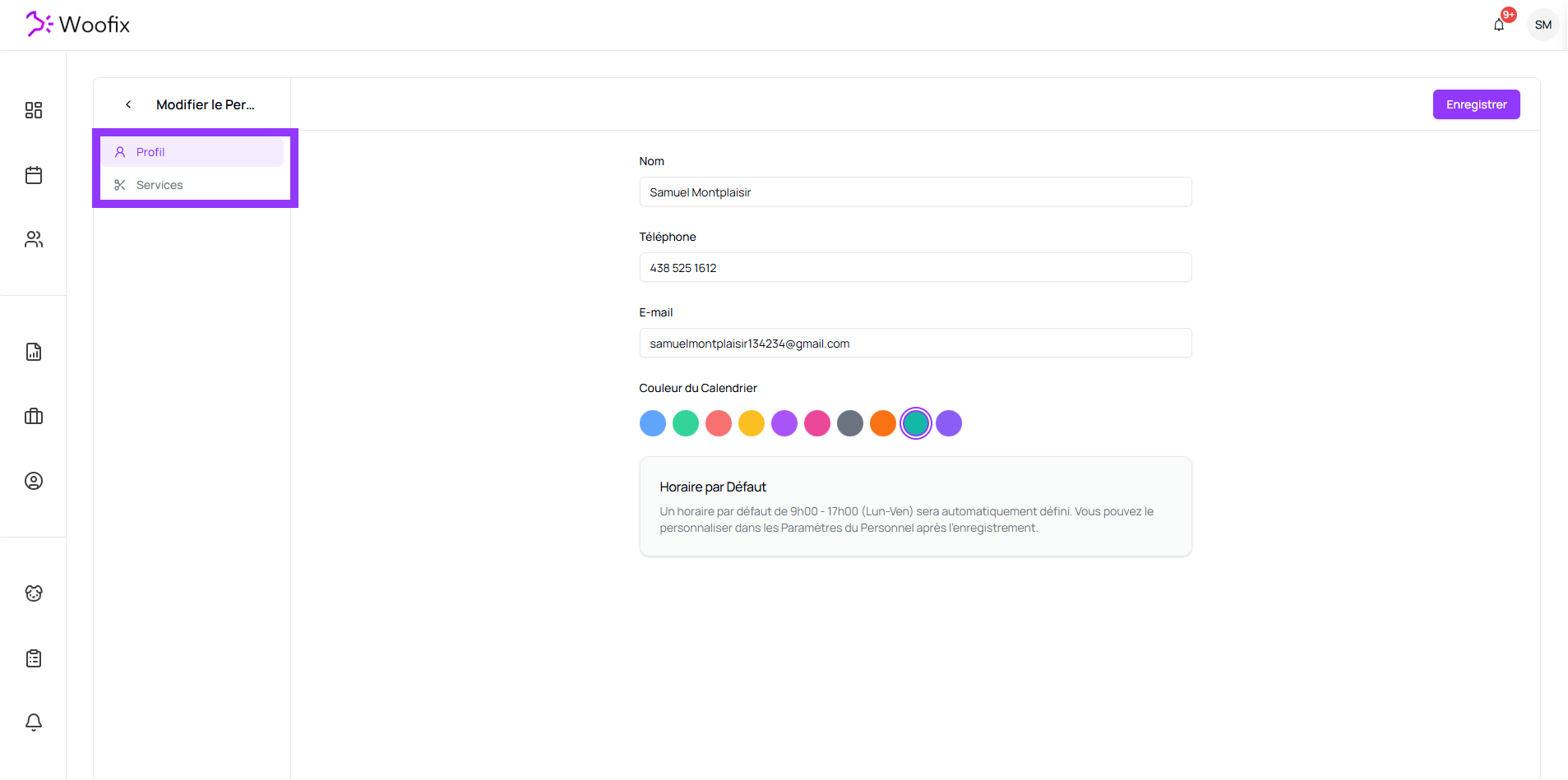
2. ✏️ Creating and Editing an Employee
When creating or editing a team member, you must fill in their identity information and assigned services. Here are the fields to configure:
- Basic Information: Fill in Name, Phone, and Email.
- Color: Select a distinct color to quickly identify the employee.
- Service List: Check the services this employee is able to perform.
Important — Default Regular Schedule :
When an employee is created, a default schedule of 9:00 AM to 5:00 PM (Mon–Fri) is automatically set. You will be able to customize this schedule once the profile is saved.
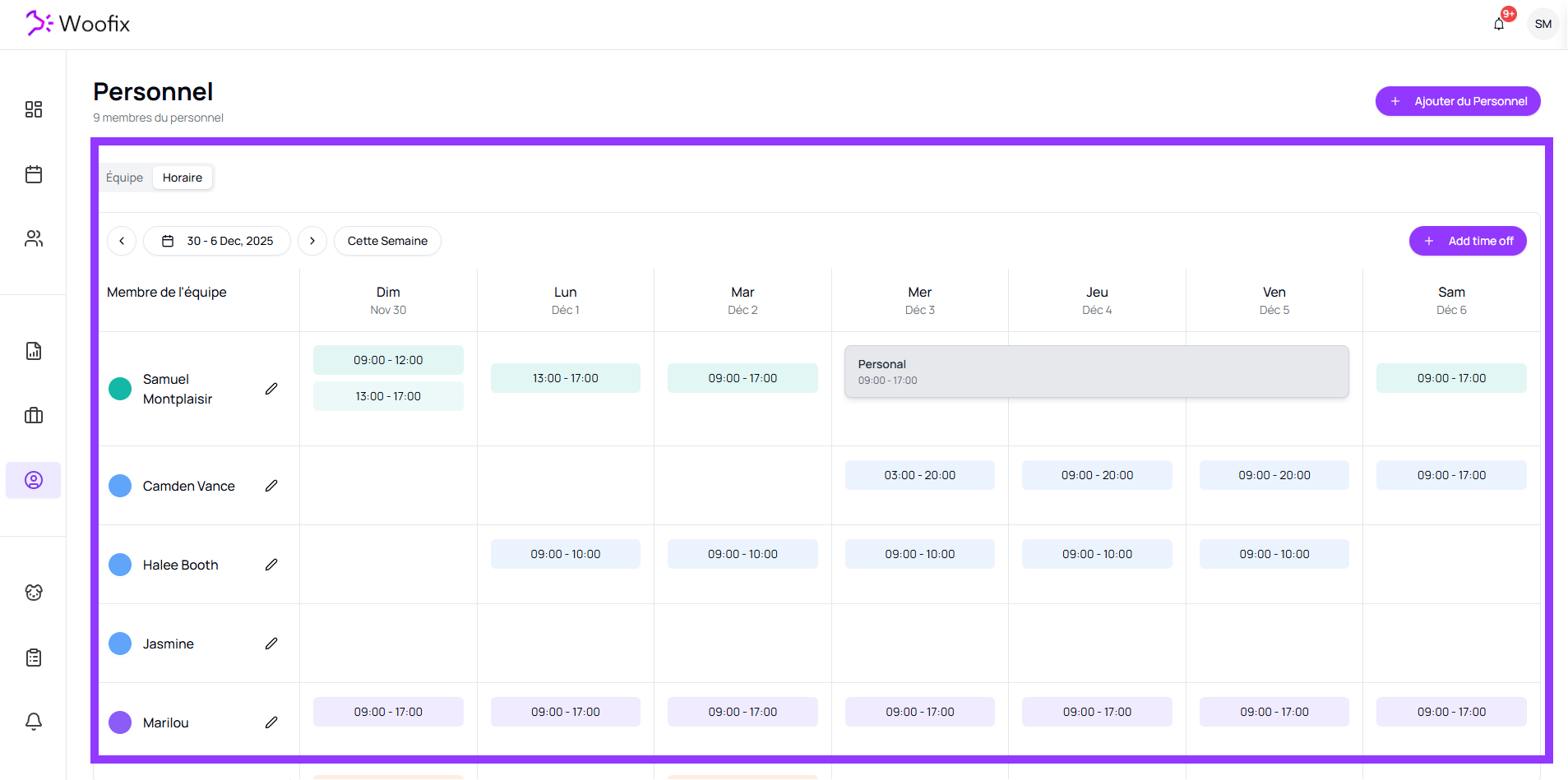
3. 📅 Managing Schedules and Time Off
Schedule management is directly tied to the app’s calendar and online booking availability. You have two main tools: Work Shifts (Regular and Exceptions) and Time Off Periods.
3.1. Work Shifts (Regular and Exceptions)
This is where you define when the employee is available to work.
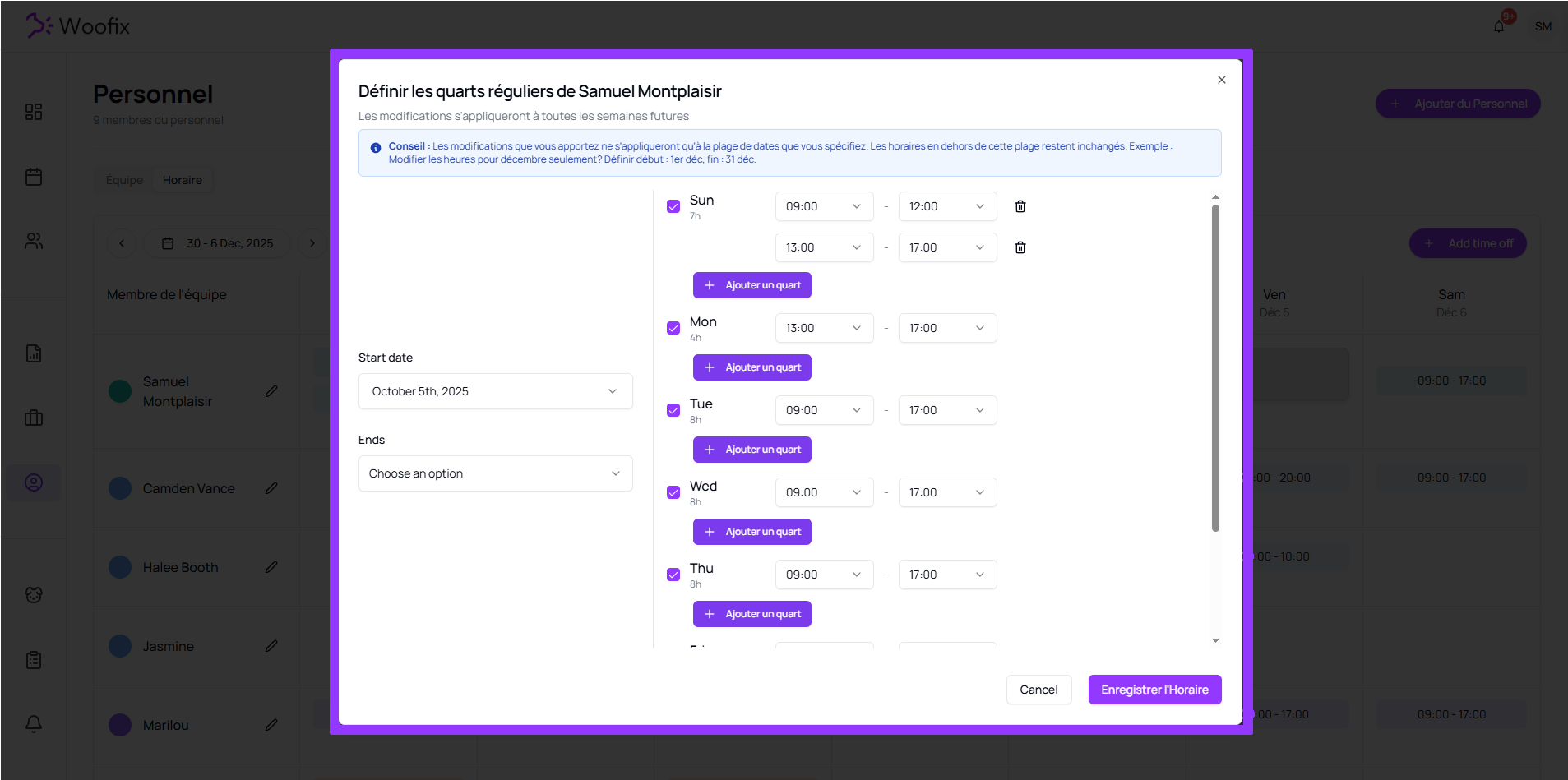
- Regular Work Shifts : Define, edit, or delete the Regular Work Shifts for a given week.
Note: Changes you make apply only to the date range you specify. Schedules outside this range remain unchanged. Example: Want to modify Regular Work Shifts for December only? Set Start: Dec 1, End: Dec 31.
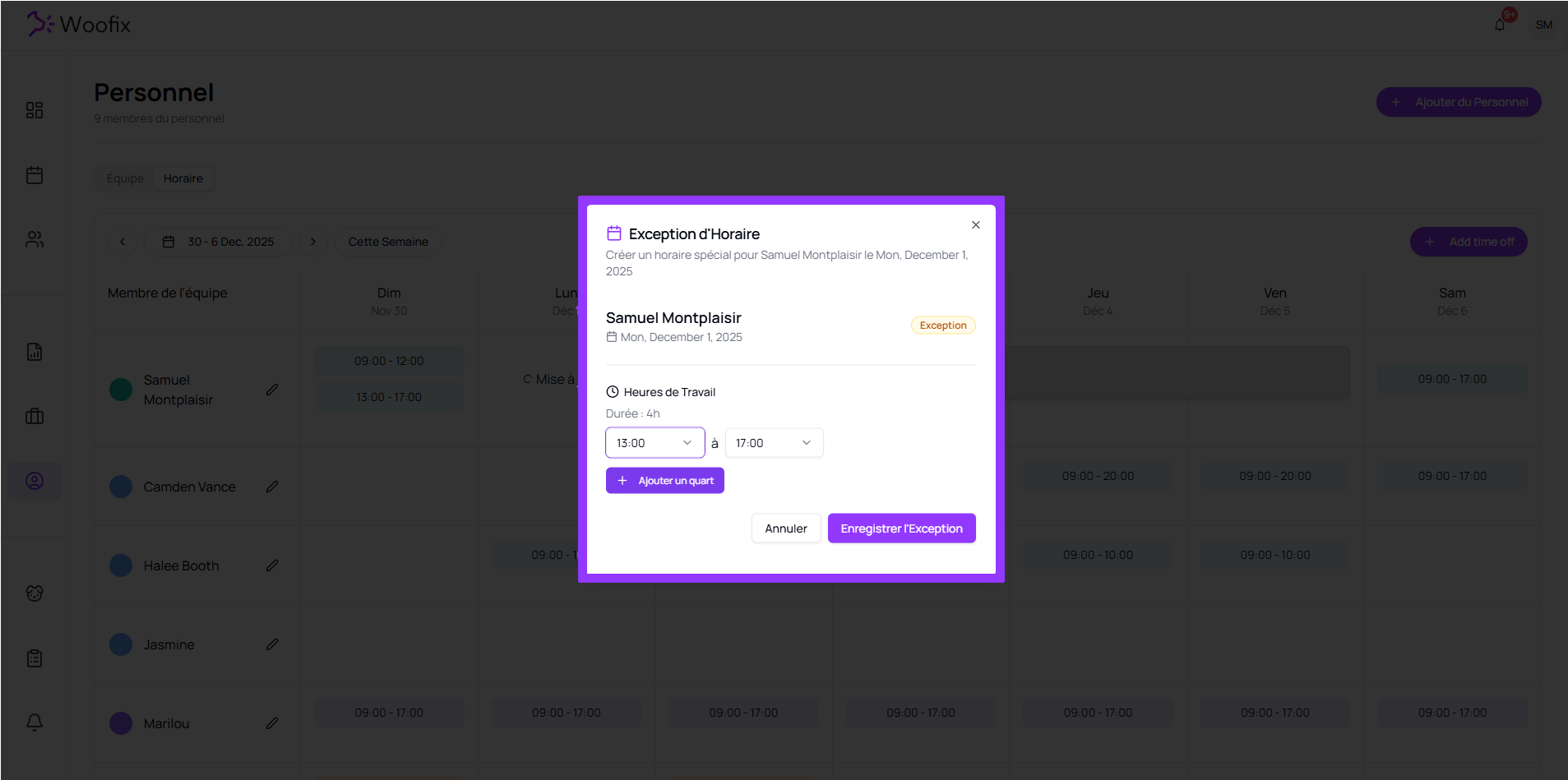
- Exceptions : You can create exceptions for specific days (e.g., working on a Saturday exceptionally) without modifying the overall regular schedule.
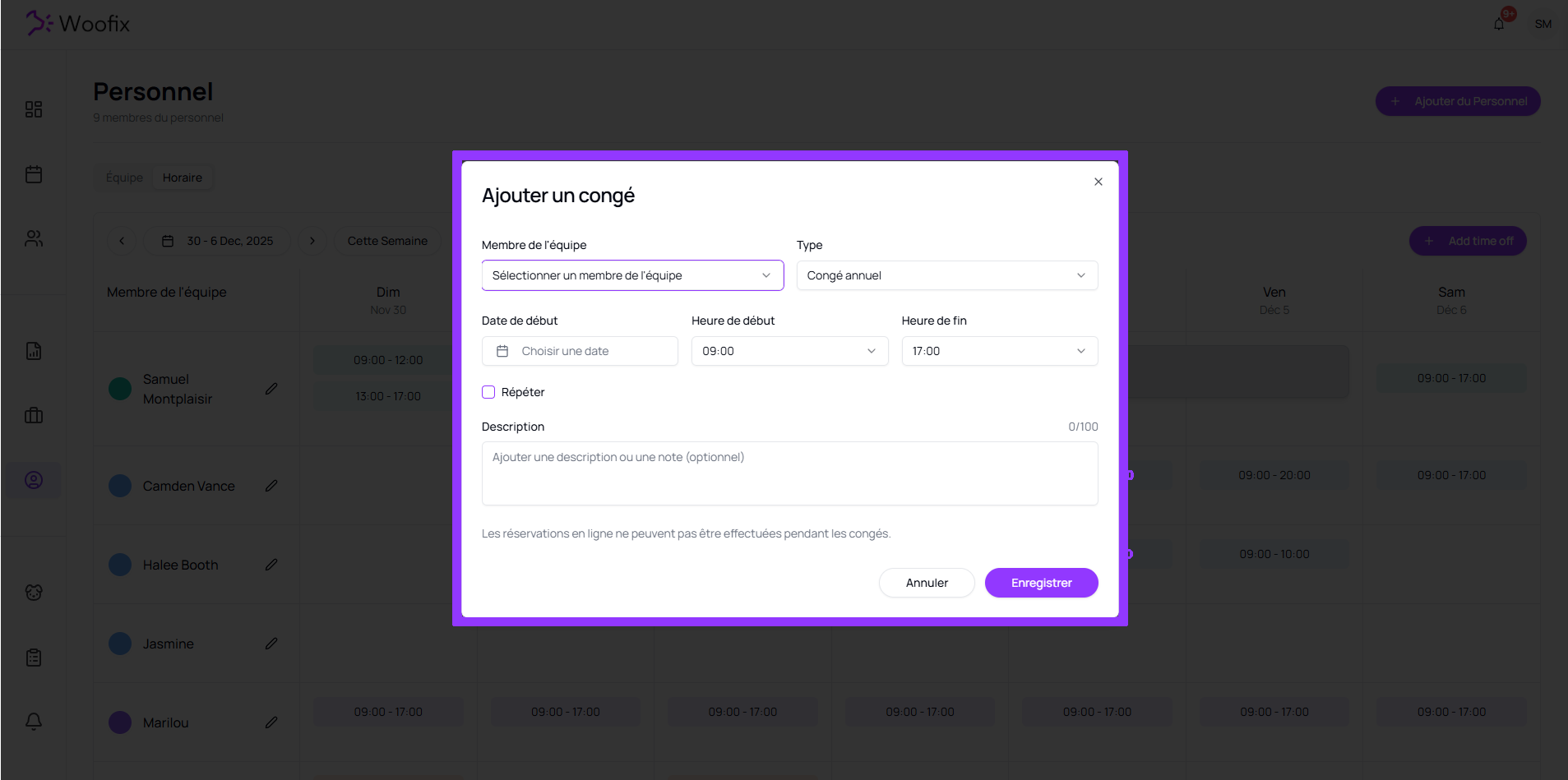
3.2. Time Off Periods
Use time off periods to block the calendar and online bookings during an employee’s absence.
- Team Member: Select the employee in question.
- Type: Specify the time-off type (Vacation, Sick Leave, Personal, Emergency, or Other).
- Dates: Select the start and end date.
- Hours: Select the start and end time.
- Description: Add a description or note (optional).
✔️ Summary
For effective staff management in Woofix:
- Fill out the Basic Information and assign a Color.
- Make sure to select the Services the employee can perform.
- Adjust the Regular Schedule to match the employee’s real availability.
- Use Exceptions and Time Off to keep the calendar accurate.